Reading-Notes
code fellows 201
Read: 05 - HTML Images; CSS Color & Text
HTML & CSS
Chapter 5: Images (p. 94-125)
There are many reasons to include an image into a webpage. As a developer you should keep in mind a few things when choosing images.
| An image should: | Stock Photos |
|---|---|
| - be relevant | www.istockphotos.com |
| - convey information | www.gettyimages.com |
| - convey the right mood | www.veer.com |
| - be instantly recognisable | www.sxc.hu |
| -fit the color palette | www.fotolia.com |
When working with images, you should keep a folder specifically for storing your files. This promotes good organization habbits. Name the file images. On a large website, the images folder may contain subfolders for further organization.
Adding Images
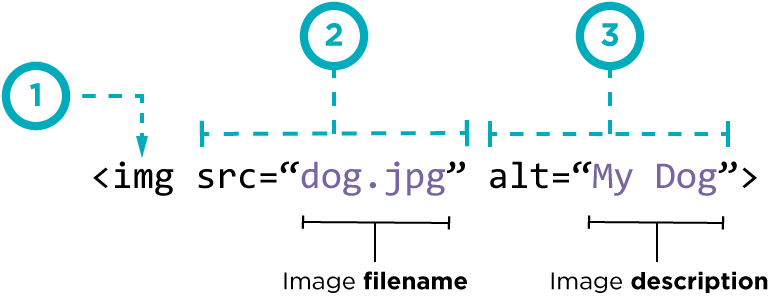 To add an image element you need to create an img tag, as seen on section 1. Section 2 is on the src attribute. This is where a relative url is placed to import the actual image. Make sure you are using the correct format for imported files, they need to end in .jpeg, .png, or .gif. The alt attribute, section 3, provides a description of the image for users who can not see it. Lastly a title attribute can be added to provide additional information. The hight & width attributes are a way you can change the size of an image outside of css.
Figure element
The new figure element is basically a dev element specifically meant to contain images with their captions. Use the figcaption element like a p element to caption your images.
Where to place images in your code
Where you place the image tag in your code can affect the layout of your webpage.
-
Before a paragraph This starts the paragraph on a new line after the image.
-
Inside the start of a paragraph The lirst line of the paragraph alines with the bottom of the image.
-
In the middle of the paragraph The image generates in the middle of the text it was placed in.
The type of element affects images as well. Blocklevel elements always appear on a new line. Inline elements sit within a block level element aand don’t start on a new line.
Creating images
Three rules cor creating content for your webpage:
- Save in the right format
- save at the right size
- measure in pixels
JPEG
Save your photos or images with many colors in a .jpeg file.
Gif & PNG
Save images with flat solid colors in these formats. For example: logos, graphics, illustrations, diagrams, etc. These are also the only formats best suited for transparency
Measuring and resolution.
As said before, measure your image in pixels. Save images at a resolution of 300 dots per inch (DPI) or higher for the best quality and sharpness on printed work. For the web 72 pixels per inch (PPI) should be good enough.
Chapter 11: Color (p. 246-263)
Additional Resources: Color Guide